
Updating Phone Accessories: A Step-by-Step Guide
Picture this: an important call comes in, but your earbuds refuse to connect to your phone. Or an adapter that worked perfectly yesterday no longer shows up in the system today. Scenarios like these happen more often than we would like to admit, and the cause is usually simple – outdated accessory software. Phone accessories, just like the phones themselves, need regular updates to work smoothly with the latest models and operating systems. In this guide we show you step by step how to update the most popular accessories without any hassle and avoid unpleasant surprises.
Contents
- What you need to update accessories
- Step by step – how to update popular accessories
- The most common problems and how to avoid them
- How to check whether the update worked
- Why updating accessories pays off more than most people expect
- Looking for new or upgraded accessories? Choose Lithuanian quality
- Frequently asked questions
Key Takeaways
| Point | Details |
|---|---|
| Preparation is essential | Save time by getting all the tools and details you need ready before you start the update. |
| Care at every step | Update each type of accessory exactly as instructed, because every manufacturer's process can differ. |
| Avoiding the most common problems | Most update hiccups are solved by restarting and repeating the process. |
| Long-term benefit | Regular accessory updates keep your devices secure and help them last longer. |
What you need to update accessories
For the update to go through without a hitch, it is worth knowing what you will need before you begin. Good preparation saves time and nerves, and sometimes even protects the accessory from being damaged by a failed update.
Basic requirements
Before starting any update, check the following:
- Wi-Fi or Bluetooth connection. Many accessories update their software wirelessly. Make sure the connection is stable and uninterrupted.
- A charged battery. Both the accessory and the phone should be charged to at least 50 percent. If the battery runs out during the update, the process may be interrupted and corrupt the software.
- The manufacturer's app. Most modern accessories require a dedicated app, such as "Google Home", "Samsung Wearable" or the "Apple" settings.
- Physical proximity. The accessory must stay next to the phone throughout the update. If it moves too far away, the Bluetooth connection may drop.
- A stable environment. Avoid updating accessories while on the move or where there are lots of wireless networks, for example in public places.
Accessory types and their requirements
| Accessory type | Connection | App | Time |
|---|---|---|---|
| Earbuds (AirPods, Pixel Buds) | Bluetooth | Manufacturer's app | 10–30 min |
| Adapters with firmware | Wi-Fi or USB | Manufacturer's app | 5–15 min |
| Cases with electronics (LED) | Bluetooth | Dedicated app | 5–10 min |
| Screen protector films (basic) | Not needed | Not needed | Not needed |
It is worth noting that not all accessories need a software update. A simple TPU case has no electronic components, so there is nothing to update. Still, before buying a new accessory it is always worth doing a compatibility check against your phone model.
Smart accessories such as earbuds and adapters update their firmware automatically when they connect to the phone within Wi-Fi or Bluetooth range. For example, a Pixel Buds update takes 10–15 minutes, while AirPods need to stay in their case for about 30 minutes. If the process is interrupted, the accessory has to be reset to factory settings and the update started again.
Pro tip: Before starting the update, turn off all other Bluetooth devices nearby. This reduces the chance of interference and speeds up the process.
Step by step – how to update popular accessories
Once you have everything ready, it is time to move on to the details – how the update works for each accessory. Different accessories require different steps, so it is important to follow the specific instructions.
Updating earbuds (AirPods, Pixel Buds and others)
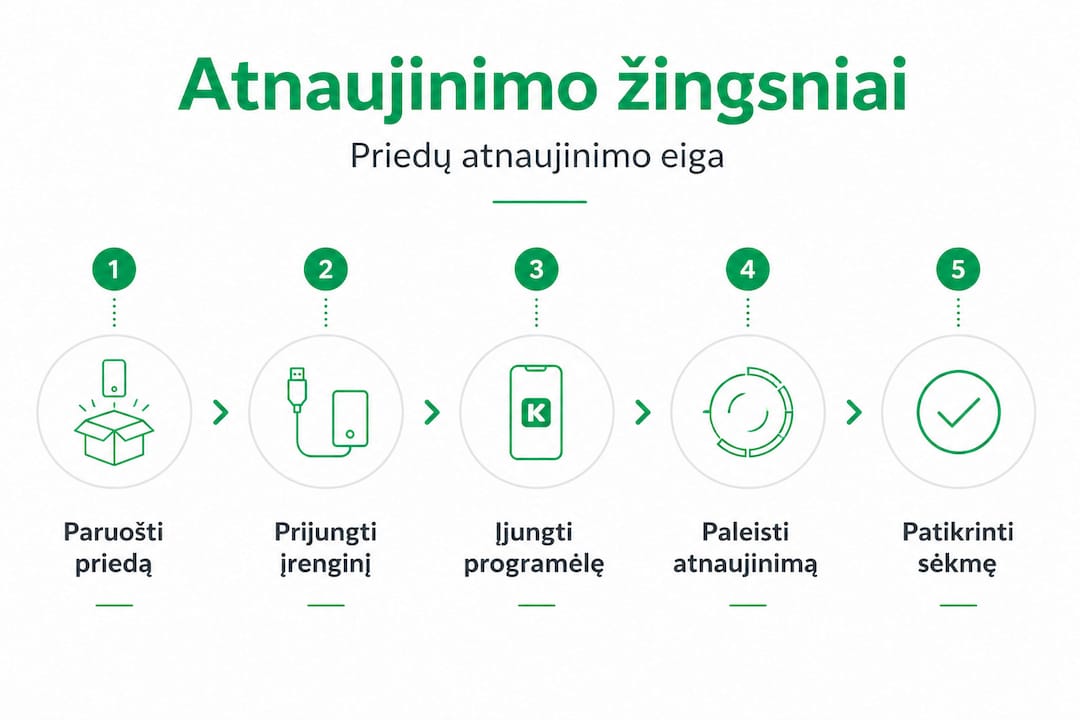
- Put the earbuds in their case. For AirPods, the case must be closed. Pixel Buds must also be in their case.
- Connect the case to a charger. This ensures the process won't be cut short by a flat battery.
- Keep the case next to the phone. The distance should not exceed one metre.
- Open the settings app. On an iPhone, go to Settings, then Bluetooth, find your AirPods and check the firmware version. On Android, use the manufacturer's app.
- Wait. The process runs automatically and can take up to 30 minutes. Do not open the case or move away from the phone.
- Check the version. After the update, open the settings again and make sure the firmware version has changed.
As with the Pixel Buds update, the process runs automatically in the background while the accessory is within Bluetooth range. The only important thing is not to interrupt it.
Updating adapter software
- Connect the adapter to the phone via USB or Bluetooth, depending on the model.
- Open the manufacturer's app. Most manufacturers offer a dedicated app that automatically detects whether updates are available.
- Tap "Update". If an update is available, the app will show a button or a notification.
- Do not close the app during the process. This can cause errors.
- Restart the adapter after the update if the app asks you to.
Updating cases with electronics
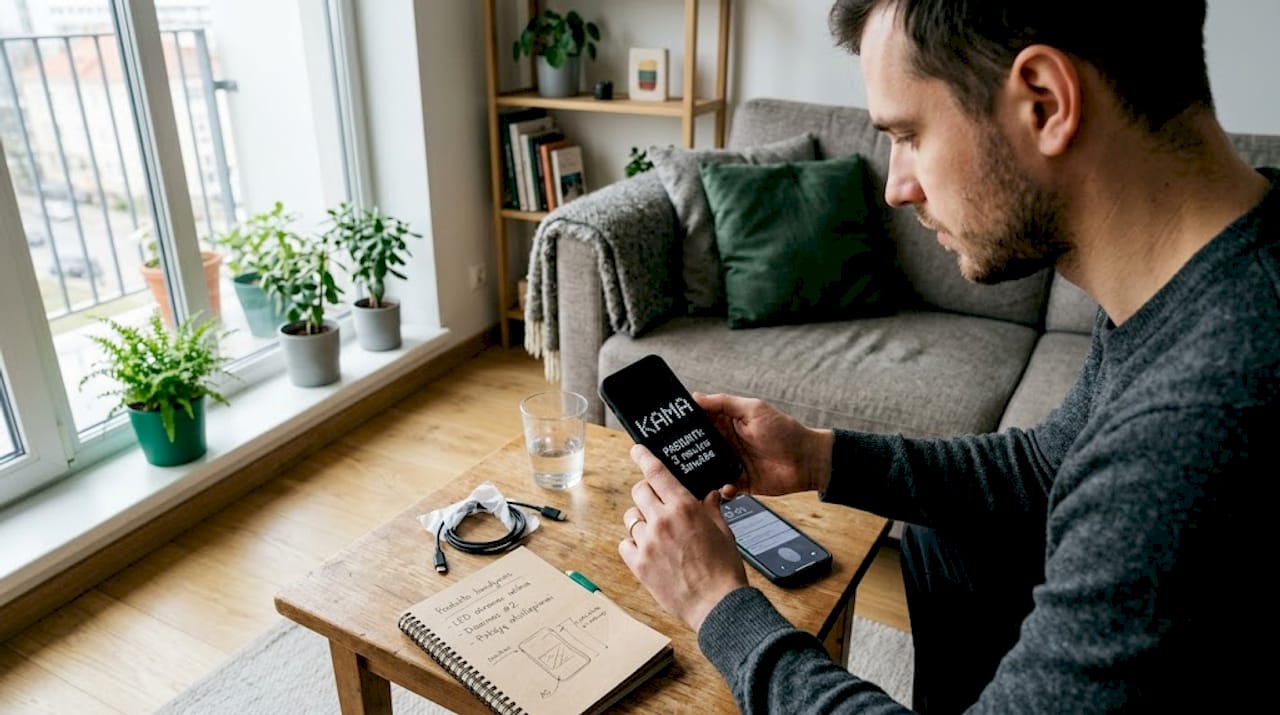
These accessories are less common but increasingly popular. Cases with LED screens or other active parts usually connect via Bluetooth and have their own app. The update process is similar to that for earbuds. A flexible case with electronics can usually be updated easily through the manufacturer's app in a few minutes.
How to tell the update worked
| Sign | Before the update | After the update |
|---|---|---|
| Firmware version | Old (e.g. 3.x) | New (e.g. 4.x) |
| Connection stability | May keep dropping | Stable |
| Sound quality (earbuds) | May be worse | Better |
| Battery life | Shorter | Longer |
| Compatibility | Problems may occur | Full compatibility |
Pro tip: If your earbuds still perform poorly after the update, try disconnecting them from the phone and pairing them again. Sometimes the system requires a fresh pairing after a major update.
The most common problems and how to avoid them
When updating accessories you may run into unexpected problems. Knowing them in advance helps you keep the process smooth and saves a lot of time and nerves.
Typical problems and their solutions
- Dropped Bluetooth connection. This is the most common problem. Solution: restart both the accessory and the phone, then start the update again. Make sure other Bluetooth devices are not interfering.
- Accessory taken out of the case too early. If you take the earbuds out of the case during the update, the process stops. You will need to start again.
- An old or flat battery. If the accessory's battery is very old, it may not hold its charge through the update. In that case, it is recommended to replace the battery first.
- An outdated phone operating system. Sometimes an accessory firmware update requires a newer version of the phone's OS. Check that your phone is up to date.
- The wrong charger. Always use original or certified chargers. Cheap substitutes can cause an unstable power supply during the update.
Important: If a firmware update still fails after several attempts, don't rush into drastic measures. First try resetting the accessory to factory settings and repeat the process. Only if that doesn't help should you turn to professionals.
When you need professional help
Some cases really do call for a specialist. If the accessory no longer turns on at all, doesn't respond to anything or is physically damaged, a DIY repair can do more harm than good. Having the battery replaced at a repair workshop can extend the accessory's life by 2–3 years, which is far more economical than buying a new one.
A DIY repair is cheaper but riskier. If you have no experience, it is better to leave the job to professionals. An update through the app, however, is completely safe and anyone can do it.
Case updates and compatibility
Cases with active parts can also run into compatibility problems after a phone OS update. Whether a case can be updated depends on the manufacturer's support. Always check the manufacturer's website to see whether your case model still receives updates.
Pro tip: Make a habit of checking for accessory updates every month. It takes just a few minutes but protects you from unexpected failures at the worst possible moment.
How to check whether the update worked
After the update, all that remains is to make sure everything works properly. This is an important step that many people skip, and then they wonder why the accessory still performs poorly.
Checking steps
-
Check the firmware version. Open the manufacturer's app or the phone's settings and find the information about the accessory's software. Compare it with the latest version listed on the manufacturer's website.
-
Test the main function. For earbuds, play some music and check the sound quality on both sides. For an adapter, connect a device and check that it is recognised.
-
Check the battery life. If the battery drained quickly before the update, it should improve afterwards. Keep an eye on it over several cycles of use.
-
Test the connection stability. Move away from the phone to your usual distance and check that the connection does not drop. A stable Bluetooth connection is one of the clearest signs of a successful update.
-
Check compatibility with new features. If the update was supposed to add new features, such as better noise cancellation or a new control gesture, try them out.
A regular checking schedule
It is recommended to review all your accessories at least once every 3–6 months and check for new updates. This is especially important after a major phone operating system update, because new OS versions sometimes change compatibility requirements.
Statistics: Users who update their accessory firmware regularly report up to 40 percent fewer connection problems and longer battery life compared with those who ignore updates.
It is also worth knowing how to identify an updated accessory by its behaviour. An updated accessory usually connects faster, works more reliably and needs a manual restart less often.
When the update really has failed
Sometimes an update appears to succeed, but the accessory still performs poorly. This may mean the problem lies not in the software but in the hardware. If the accessory still misbehaves after several successful updates, it is time to think about replacing the battery or buying a new accessory. A good accessory with the latest firmware version should work smoothly without any effort on your part.
Why updating accessories pays off more than most people expect
To be honest, most people see accessory updates as an unnecessary detail. "Do the earbuds work? They do. What more do you need?" That attitude is understandable but wrong, and we see it all the time.
The reality is this: an accessory firmware update is not just a technical formality. It directly determines how long your accessory will last, how well it will work with new phone models and whether it will be safe to use. Manufacturer updates often fix not only bugs but also security holes. Yes, even earbuds can have security vulnerabilities, especially those that connect to the phone via Bluetooth and have access to the microphone.
Another aspect most people ignore is the long-term economics. A quality accessory that is updated on time and properly looked after can last 4–5 years. The same accessory without updates often starts to perform poorly after just 1–2 years, because it no longer works well with new phone OS versions. That means you pay twice for something you could have kept for longer.
There is an even subtler benefit too. Updated accessories often gain new features that were not there at the time of purchase. Noise cancellation, better battery management, new control gestures. You pay once but get a better product over time. It is a real example of return on investment that we rarely notice in everyday life.
Paying conscious attention to accessory care, including regular updates, noticeably reduces costs in the long run. Instead of buying a new accessory every year, you can use the same one for 3–4 years with the same or even better quality. And that is certainly no small detail.
Looking for new or upgraded accessories? Choose Lithuanian quality
If, after reading this whole guide, you have realised that your accessories are already too old for updates, or you simply want to start with a modern, quality solution, we have good news.

Kama.lt offers a wide range of accessories with fast delivery across Lithuania. Whether you are looking for a Samsung Galaxy S24+ case or an iPhone 14 Max case, you will find the right option with a warranty and clear compatibility information. In our shop you can find accessories that support modern update solutions and are designed to work with the latest phone models. Browse the full accessories collection and pick what suits your needs. We deliver quickly, and you can rely on the quality.
Frequently asked questions
How do I know my earbuds are up to date?
Connect the earbuds to your phone and open the manufacturer's app. Within a few minutes it will show the current firmware version and whether a newer version is available.
What should I do if an accessory update was interrupted?
Restart the accessory and the phone, then try updating again. Based on typical cases, most problems are resolved on the second or third attempt.
Do all cases or screen protector films need a software update?
No, only accessories with active electronic parts, such as LED screens or built-in sensors. Basic screen protector films and standard cases do not need updating.
Do I have to replace an old battery along with the update?
It is not mandatory, but with a new battery the accessory works more reliably and the update runs more smoothly, without the risk of interruptions.
How often should accessories be updated?
It is recommended to check and update accessories at least every 3–6 months, or as soon as the manufacturer's app notifies you that an update is available.
Recommended
Straipsnyje minimos prekės
-
-
-
-
-
Pristatymas 1-3 d.d.Regular price €2,99
-
-
-


